
How to Carve a Pumpkin in Carve a Pumpkin! Roblox: Editor Controls
Carve a Pumpkin carving controls from gameplay footage: mouse cut paths, scroll zoom, SUBMIT and EDIT, knife tool, accessory Finish flow (touch unverified).
FAQ
How do you cut pieces in Carve a Pumpkin Roblox?
How do you zoom in while carving in Carve a Pumpkin?
What does the SUBMIT button do in Carve a Pumpkin Roblox?
Where are the carving tools in Carve a Pumpkin Roblox?
Can you place hats while the carve timer runs?
Do Carve a Pumpkin Roblox carving controls work on mobile?
How do you open the Carve a Pumpkin carving editor on Roblox?
The carving workspace is the lit pumpkin on a wooden pedestal during the Round: phase described on how to play Carve a Pumpkin!. The top bar shows Theme:, a green SUBMIT button, and a Round countdown—the same cluster logged on our themes in real rounds page. This guide covers editor controls only (cutting, zoom, tools, submit/edit, accessory placement flow). It does not repeat theme prompts, vote scoring, or shop prices; follow the links for those topics.
In KawaiiCreeper’s first Freestyle round (video uploaded 2026-10-11), the match opened with a body and stem picker before freehand carving. Andre se hace Gamer’s rounds usually jumped straight to an uncarved pumpkin with Theme: already set. Whether every round shows the picker is not yet verified—we only saw the menu in that Freestyle opening.
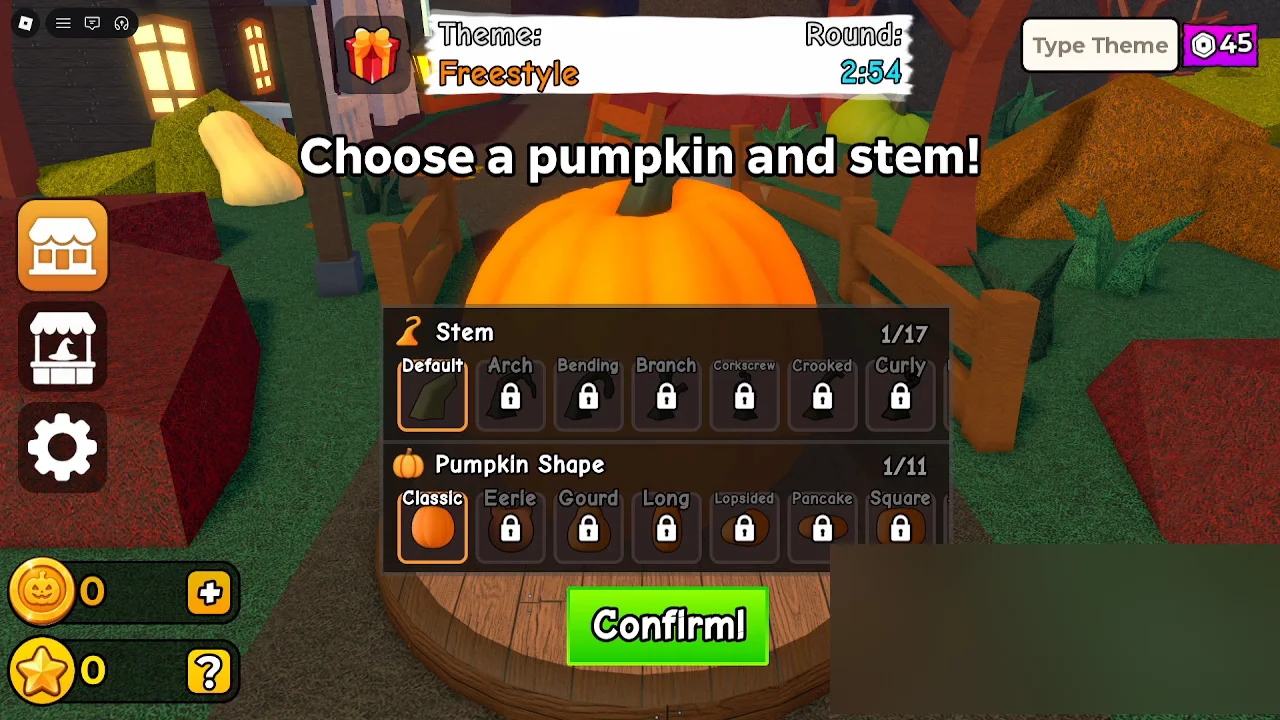
KawaiiCreeper’s footage (~0:04): Choose a pumpkin and stem! with Classic / Default selected and a green Confirm! button while Round: 2:54 counts down.
How do mouse cuts work in the Carve a Pumpkin Roblox editor?
In both videos we reviewed, cuts are drawn on the pumpkin shell, not on a flat 2D canvas. While defining a shape, a white dotted line traces the path; after the cut completes, the removed area shows a warm yellow interior that reads clearly when the pumpkin is lit during voting.
KawaiiCreeper’s Freestyle tutorial strings (same video, early round) showed:
- “Click around to cut out a piece!” with a small path starting on the shell (~0:36 in our frame).
- “Drag your mouse to cut out a piece!” once a heart-shaped hole was already open (~0:52).
- “Try zooming in and out by scrolling!” with the camera closer to the face (~1:00).
Andre se hace Gamer’s Fire round shows the same dotted-path behavior on a flame-shaped mouth, and a Devil round frame shows a small curved dotted path mid-cut with Back and Cancel buttons under the pedestal—useful if you mis-draw a line.
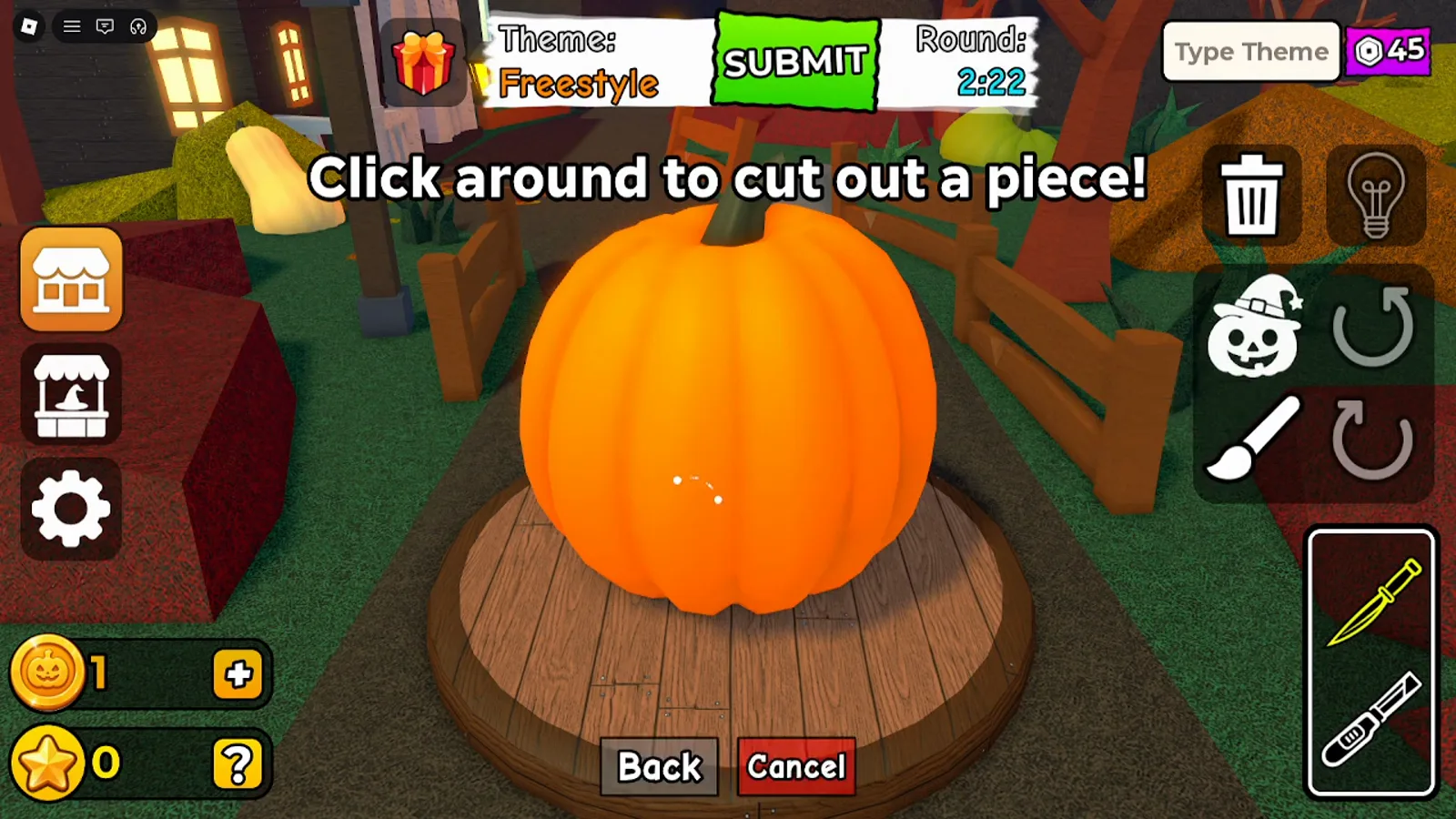
Freestyle tutorial text Click around to cut out a piece! with the bottom-right knife tool highlighted (KawaiiCreeper, ~0:36).
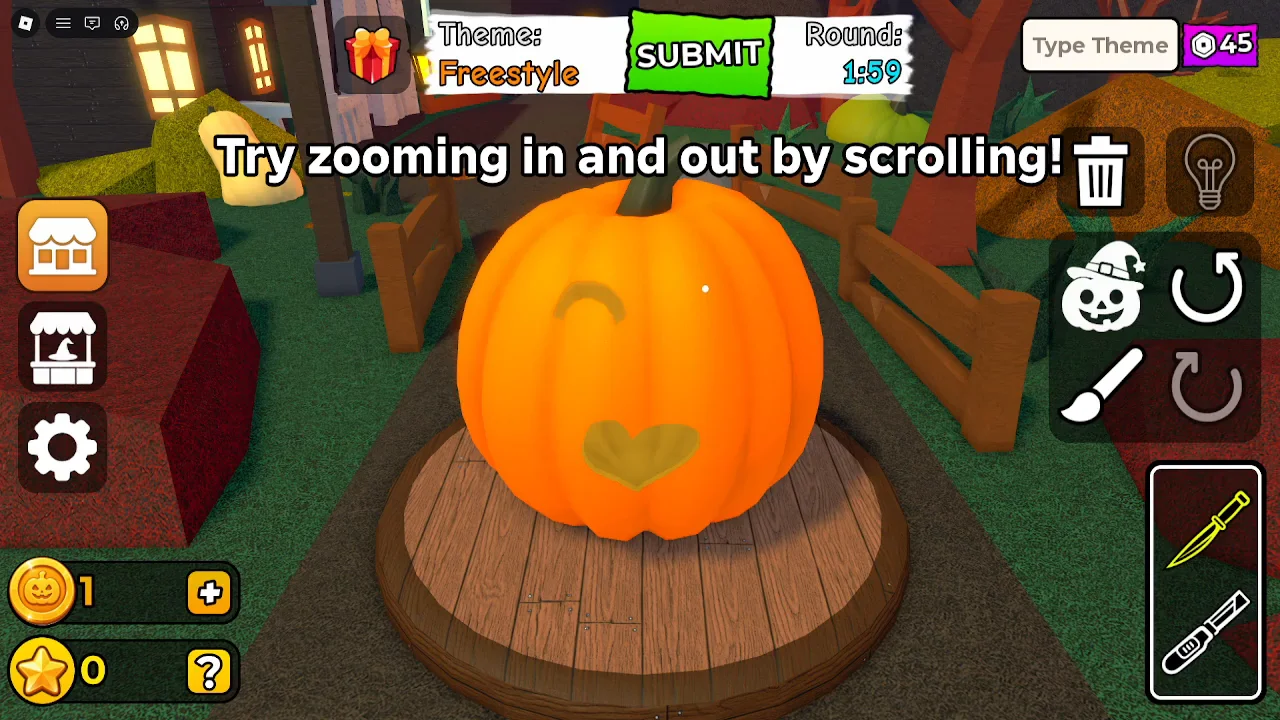
The scroll hint Try zooming in and out by scrolling! appears above a partially carved winking face (KawaiiCreeper, ~0:59; Round: 1:59 on the HUD).
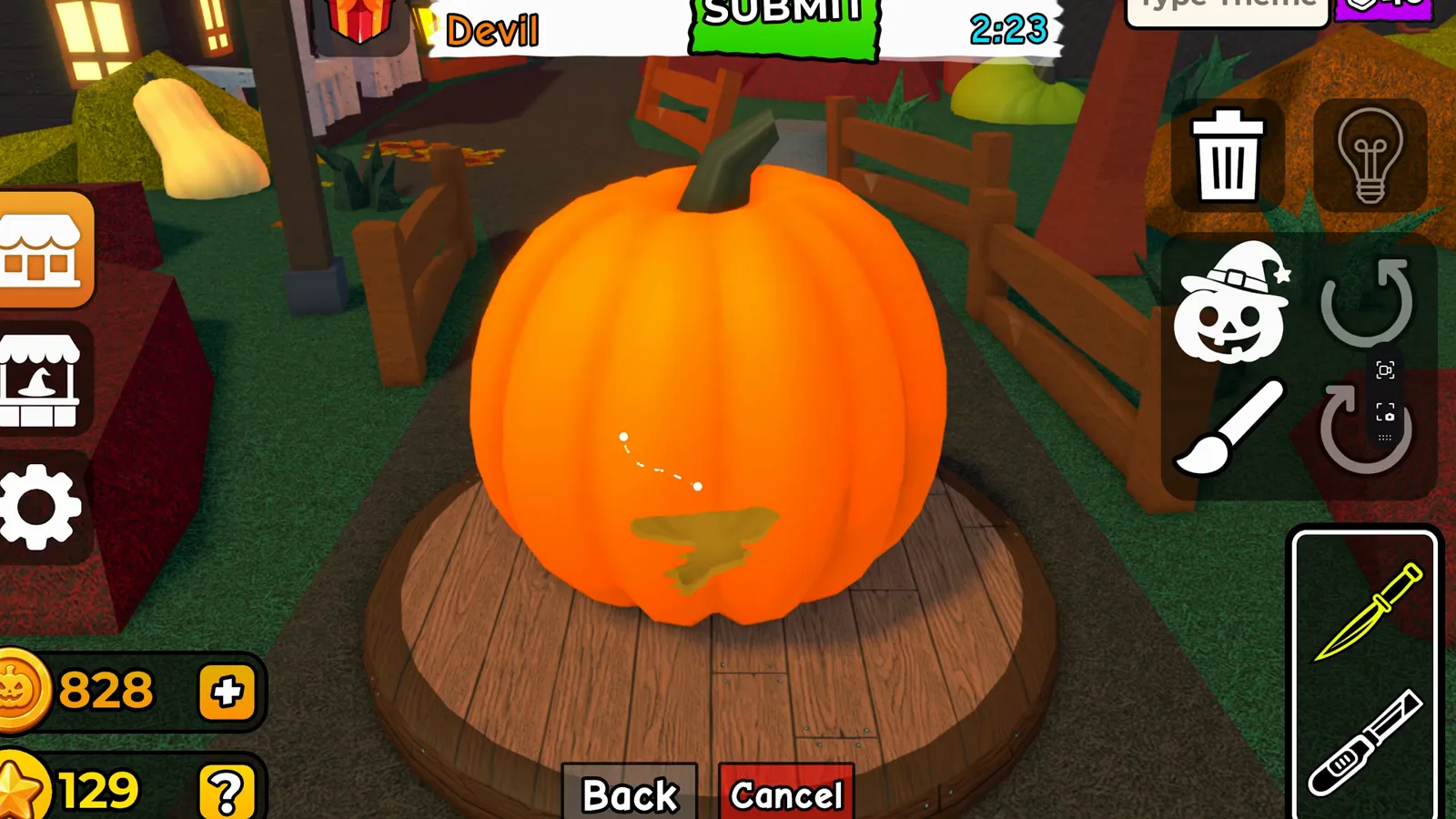
Devil round: dotted cut path in progress; Back / Cancel sit below the pedestal (Andre se hace Gamer, ~11:42).
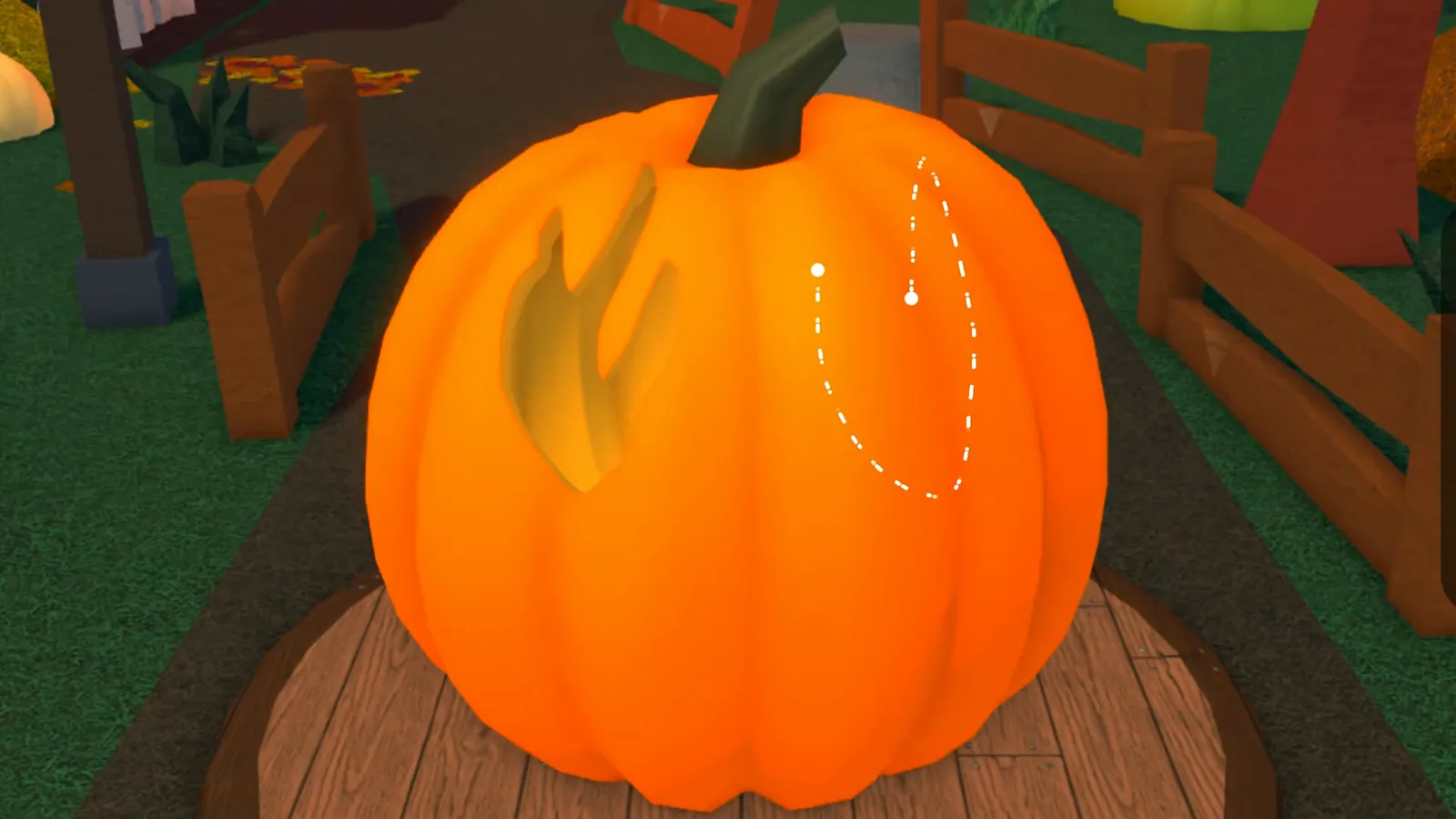
Fire theme: flame eye holes finished while a U-shaped dotted path outlines jagged teeth (Andre, ~8:52).
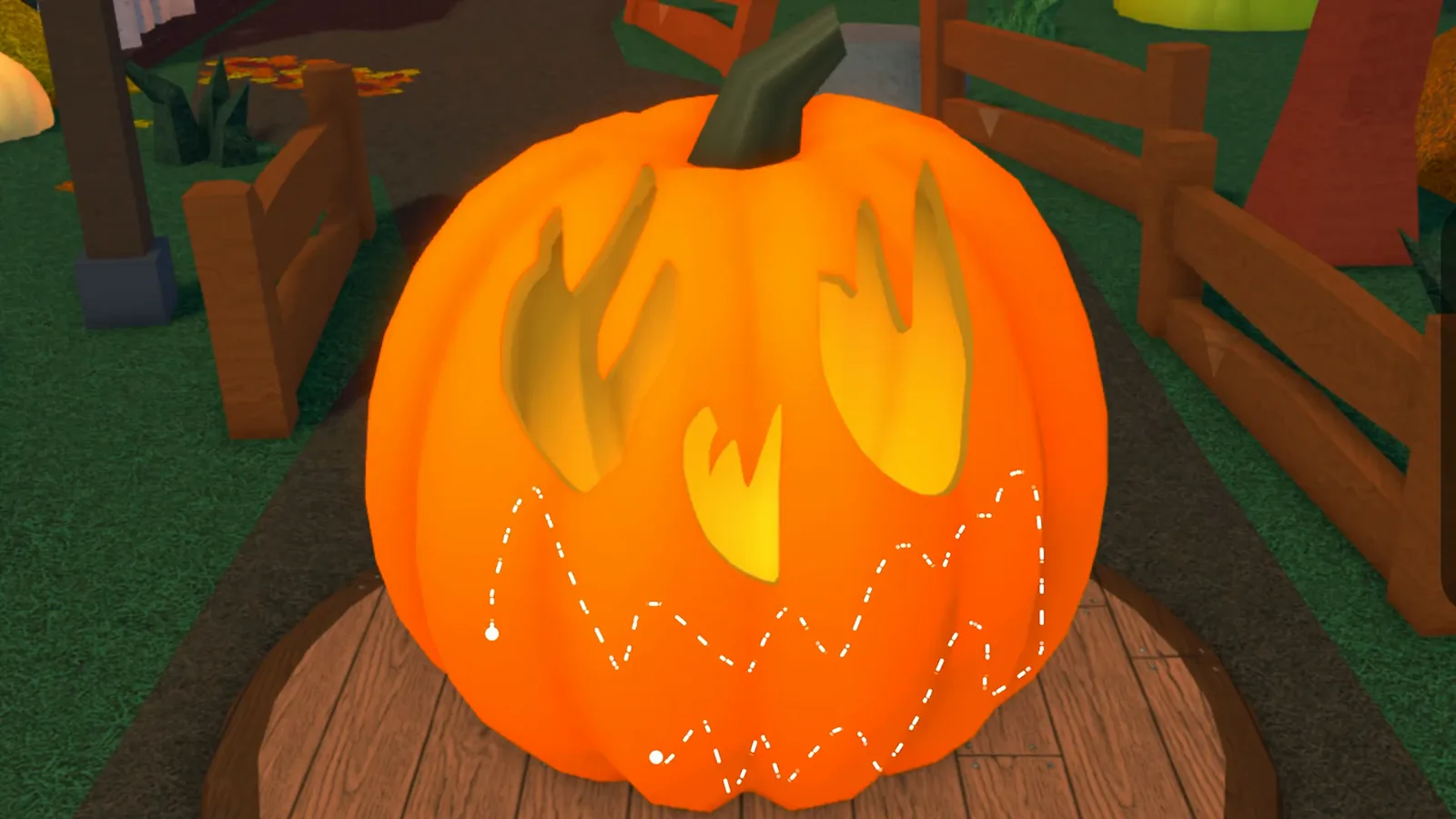
Same Fire pumpkin moments later: teeth cut removed and interior glow visible (Andre, ~9:08).
| Observation | Status |
|---|---|
| White dotted path while defining a cut | Verified · Checked 2026-10-12 |
| On-screen hints: click/drag to cut | Verified · Checked 2026-10-12 |
| On-screen hint: scroll to zoom | Verified · Checked 2026-10-12 |
| Official store line “Zoom in to make carving easier!” | Verified · Checked 2026-10-11 |
| Touch or gamepad carve bindings | Not yet verified |
What tools and buttons appear on the carving HUD?
Across Treasure, Devil, and Freestyle frames, the right edge repeats a similar layout:
- Top cluster: trash can, light bulb, pumpkin-with-hat (accessory entry), paintbrush, and paired undo/redo arrows (exact labels not read in footage).
- Bottom-right box: two carving tools; the knife icon carried a yellow highlight whenever cutting was active. A second, wider blade icon sat underneath—we treat it as an alternate carve tool without an official name.
The left column (shop stall, accessory stand, gear) matches menus seen on the coins, stars, and shop page; opening those menus during a round is possible, but whether they pause the Round timer is not confirmed here (themes footage showed Round 0:43 with an accessory editor open—see themes guide).
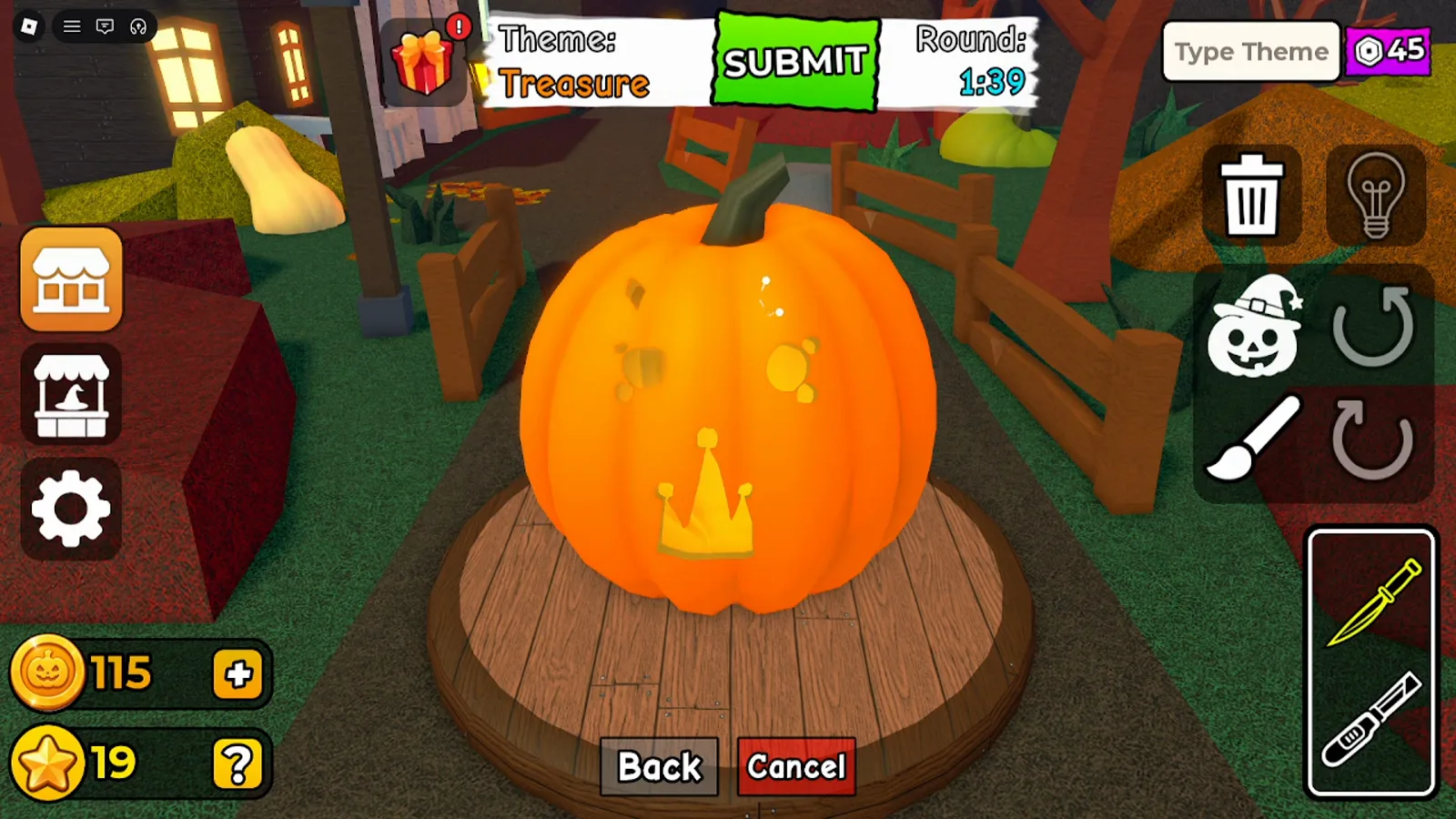
Treasure round (~10:00): SUBMIT, Round 1:39, right-rail icons, and knife selected in the bottom-right tool box (KawaiiCreeper).
Pitfalls players hit in the same footage (observations, not rules)
These are mistakes narrators reacted to in the two videos—useful for expectations, not guaranteed game behavior:
- Cuts can remove more than you planned. In Andre’s Mustache Face round, the auto-translated captions say “my whole eye went out” after a carve (not shown as on-screen UI text)—large enclosed paths may delete a bigger interior region than you expect.
- Undo may not be selective enough for some fixes. During Devil, the narrator (auto captions) wished for an eraser and said sending the pumpkin back would delete other parts he wanted to keep—rely on Back / Cancel / undo carefully; we did not map every undo scope in HUD labels.
- KawaiiCreeper’s auto captions mention undo once (~6:32) while frustrated with a cut; we did not verify the undo button’s step size from HUD alone.
How do SUBMIT and EDIT work while Round time is running?
During active carving, SUBMIT is green on the top bar. In Andre’s Fire round, we saw him finish the flame mouth, place a Spider misc accessory in the editor (~9:20 in the same video), then submit; the hub view returned while Round: 1:15 was still counting and the top button read EDIT in red—meaning he could re-enter the editor until time expired. That matches the SUBMIT → EDIT swap noted in our voting and results timeline (green submit during carve, grey locked submit during voting).

Top-bar crop after submitting the Fire pumpkin: EDIT (red) with Round: 1:15 still on screen (Andre, WRXWjjoXVlo ~9:38 / 578s).
We did not capture a frame where EDIT returns to SUBMIT mid-round, and we did not test whether submit locks carving until you press EDIT again. Treat submit as “I am ready for now” in this footage, not as an official scoring trigger.
How do you place accessories without leaving the round?
Decoration happens inside the same Round timer in the clips we checked. Flow observed in KawaiiCreeper’s Freestyle round:
- Carve the base face with the knife tool.
- Open the accessory / hat editor (pumpkin-and-hat icon on the right rail in carving HUD; full-screen purple layout in the straw-hat frame).
- Pick a category tab (Hats in this example), select an owned item (Straw Hat).
- Adjust Position, Rotate, and Scale sliders (X/Y/Z values shown as decimals such as 0.50).
- Press the green
Finish!checkmark to return to the pedestal view.
Item catalogs, Coin prices, and Body/Stems/Misc tabs belong on customize your pumpkin (sister guide). Here we only document editor choreography seen on video.
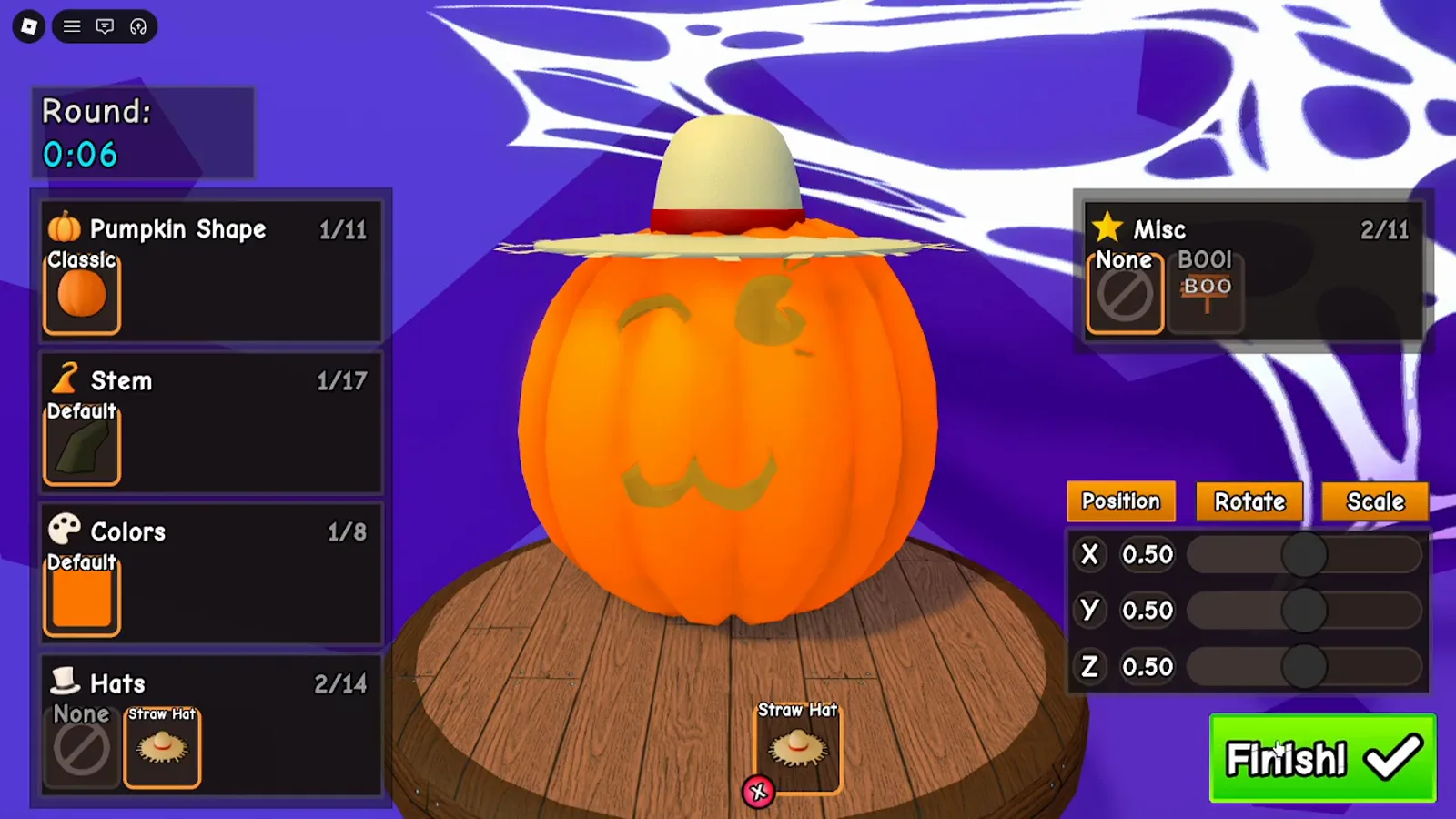
Accessory editor with Position sliders and Finish! while Round: 0:06 still shows (KawaiiCreeper, ~2:52).
What should you practice before chasing advanced themes?
Editor muscle memory helps any theme label on the HUD. A sensible order tied to other guides:
- Read the Round → SUBMIT → Voting loop on how to play.
- Skim theme names seen in footage so you recognize prompts—not to copy every sample carving.
- Learn currency and shop tabs on coins, stars, and shop when you want new hats or colors.
- Return here for cut/zoom/tool behavior before reading customize your pumpkin for catalog detail.
Our suggestions (not game mechanics)
- Sketch one large readable shape first, then add small details after a scroll zoom—in the footage, close-up frames made teeth and crown cuts easier to see.
- Pause on dotted paths before releasing the mouse if Back/Cancel is on screen; Andre’s Devil round shows those buttons during an active path.
- Place must-have accessories before the last twenty seconds; we saw Finish! panels with single-digit Round timers more than once.
- Hit SUBMIT when you would accept the pumpkin as-is, then use EDIT if you still have time—matches Andre’s Fire-round hub clip.
Where do these observations come from?
| Source | Channel | Upload date | Language | How we used it |
|---|---|---|---|---|
| gw8giYWu3Ss | KawaiiCreeper | 2026-10-11 | English audio; no reliable captions | Freestyle tutorial hints, body/stem picker, accessory Finish! flow, Treasure HUD |
| WRXWjjoXVlo | Andre se hace Gamer | 2026-10-10 | Spanish audio; auto-translated English captions (clues only) | Dotted-path Fire/Devil carves, EDIT after submit, undo/eraser commentary |
Screenshots are illustrative frames from third-party gameplay with other players’ name tags blurred where they appeared; prose is original to carveapumpkinguide.wiki. We have not independently played every control binding as of 2026-10-12.

Carve a Pumpkin Roblox carving editor Freestyle tutorial hints and SUBMIT HUD (KawaiiCreeper)
What is still not verified?
| Topic | Notes |
|---|---|
| Mobile / tablet touch carve and pinch zoom | No touch-first footage reviewed. |
| Official names for knife vs second carve tool | Icons only; no labeled tooltip captured. |
| Full undo/redo stack depth | Buttons visible; step limits not read. |
| Whether shop menus pause Round time | Timer seen ticking behind some editors; not exhaustively tested. |
| Keyboard shortcuts (if any) | Not shown in these recordings. |
| Camera rotate keys vs mouse-only orbit | Rotation arrows appear on some HUD frames; binding not verified. |
Related Articles
guides
Carve a Pumpkin Roblox Coins, Stars and Shop: What We Saw
Carve a Pumpkin Roblox Coins and Stars from real rounds: results-screen payouts by place, Pumpkin Shop prices, Playtime Rewards and title labels, with limits.
guides
Customize Your Pumpkin in Carve a Pumpkin Roblox: Shop & Looks
Customize your Carve a Pumpkin Roblox look: Pumpkin Shop Body/Stems/Hats/Misc/Colors/Glow tabs, accessory sliders, and what we saw in October 2026 footage.
guides
What Wins in Carve a Pumpkin Roblox? First-Place Pumpkins We Saw
See what first-place pumpkins looked like in Carve a Pumpkin Roblox gameplay: podium winners by theme, readable carvings, and limits—scoring rules not verified.
Was this helpful?
Thanks for the feedback!